Tracking Breadcrumbs [Beta Map]
Breadcrumbs in Asset Essentials gives Account Administrators, Supervisors, and Site Administrators the ability to track a technician’s whereabouts when they are out on a job, provide quicker response times to citizen requests, increase safety precautions, reduce liability, boost day-to-day efficiency, and plan for future work.
NOTE Only certain clients are eligible for this feature. To learn if you are eligible, contact Client Services. Your account also must be configured in order to utilize Breadcrumbs.
Navigate to the Map
To see the breadcrumbs data for any location, you need to navigate to the Map.
- Click on the Map menu icon from the side navigation menu.
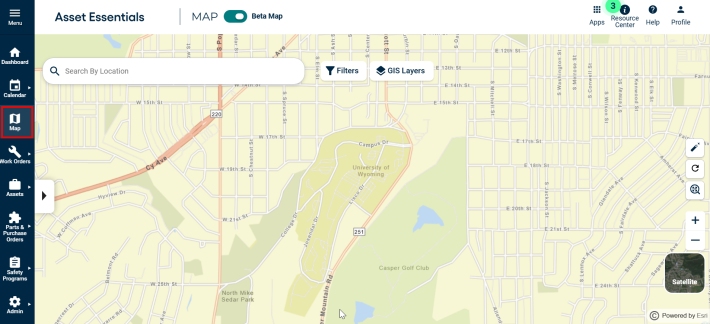
This opens map on the screen with the breadcrumbs data.
Viewing Breadcrumbs Details
-
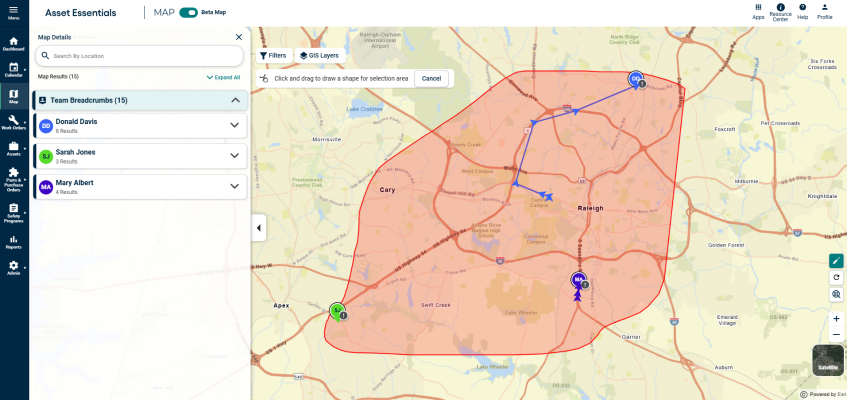
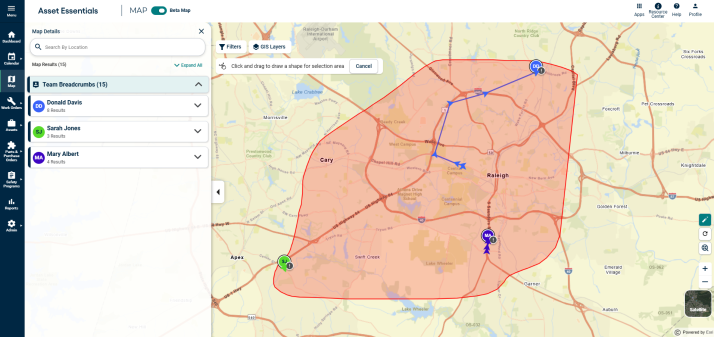
The left menu opens and shows breadcrumbs when you select them on the map, either by clicking the arrow or using the Lasso tool.
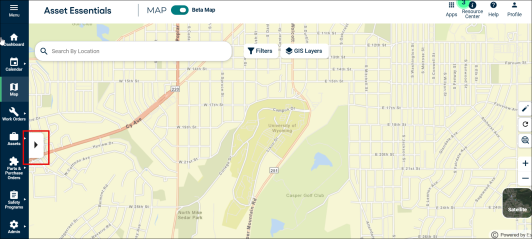
This opens a Map Details tab having the Team Breadcrumbs data for a particular location on the map.
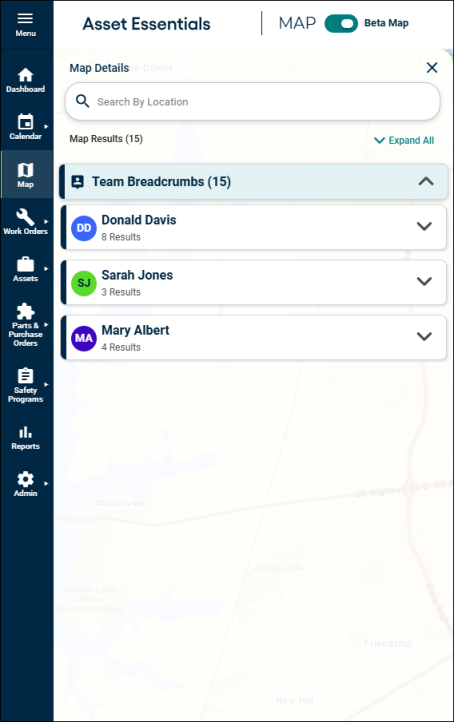
-
You can also click the breadcrumbs point shown on the map to open the Map details tab for that location.
-
To view a particular breadcrumbs detail, click on the details card from the Map Details tab.
-
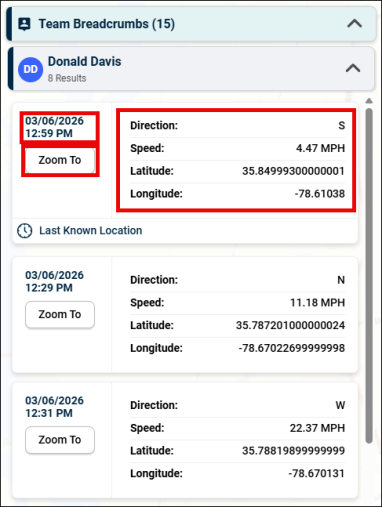
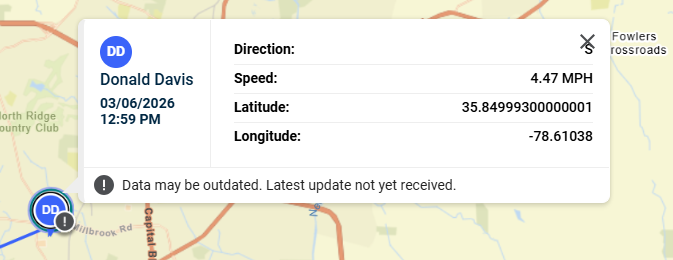
The Breadcrumbs details card displays the following details:
-
Date and time when the breadcrumb was recorded.
-
Direction in which the user was headed last.
-
Speed the user was going last.
-
Latitude and longitude data of where the user was last.
-
Zoom to button to zoom the breadcrumb on the map.
-
Selecting the Breadcrumbs
-
Use the Lasso Tool to select multiple breadcrumbs.
-
The results panel will update with selected breadcrumbs.
Filtering the Breadcrumbs
-
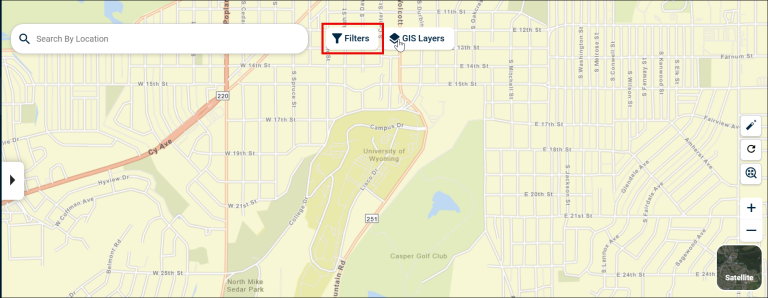
Click the Filters button on the top of map to open filters panel.
-
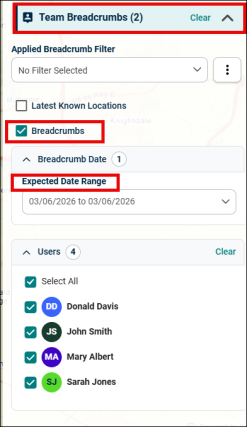
Open the Team Breadcrumbs drop-down section for related filters.
-
Following filter options for breadcrumbs are available:
-
Applied Breadcrumbs Filter- Select from saved filters to quickly adjust the breadcrumb details showing.
-
Latest Known Locations- Check the box to show the last recorded location for a user on the map.
-
Breadcrumbs- Check the box to show historical breadcrumbs data. This highlights the path or movement history of team members on the map.
-
Breadcrumbs Date- Select the date for which you want to view the location breadcrumbs. You can use the Date Range dropdown to set the start and end dates.
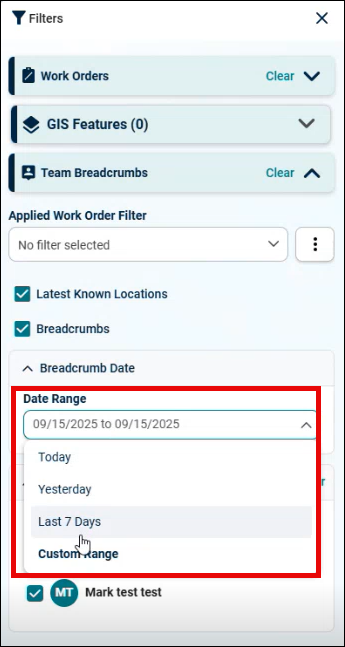
The Date Range drop-down has the following options for quick selection:
1. Today: Displays breadcrumbs collected only for the current day.
2. Yesterday: Shows breadcrumbs from the previous calendar day.
3. Last 7 Days: Includes breadcrumb data from the last 7 consecutive days, including today.
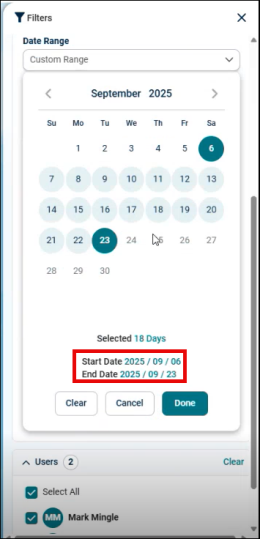
4. Custom Range: Allows you to select a specific start and end date using a date picker.
Select the start date and end date on the calendar and click Done. The filter will automatically update the map to display breadcrumb data for the chosen period.
-
Users- Check the box next to the user(s) who you would like to see breadcrumbs for during the date and time selected.
You will see lines with arrows populate on the map that match the color of the user(s) you selected.
-
